One Mac, every desk you work from.
Save a display setup per desk, and switch the whole machine to one from the menu bar, a keyboard shortcut or SSH.
Drawn to scale. A Mac with nothing attached gets the rectangle on the left.
Everything to the right of the break is a setup somebody saved and can switch to in one action: a 49 inch ultrawide at one desk, a 34 inch at another, an iPad on the sofa. Version 1.19, signed and notarised. It costs 10 euro, and it asks rather than checks.
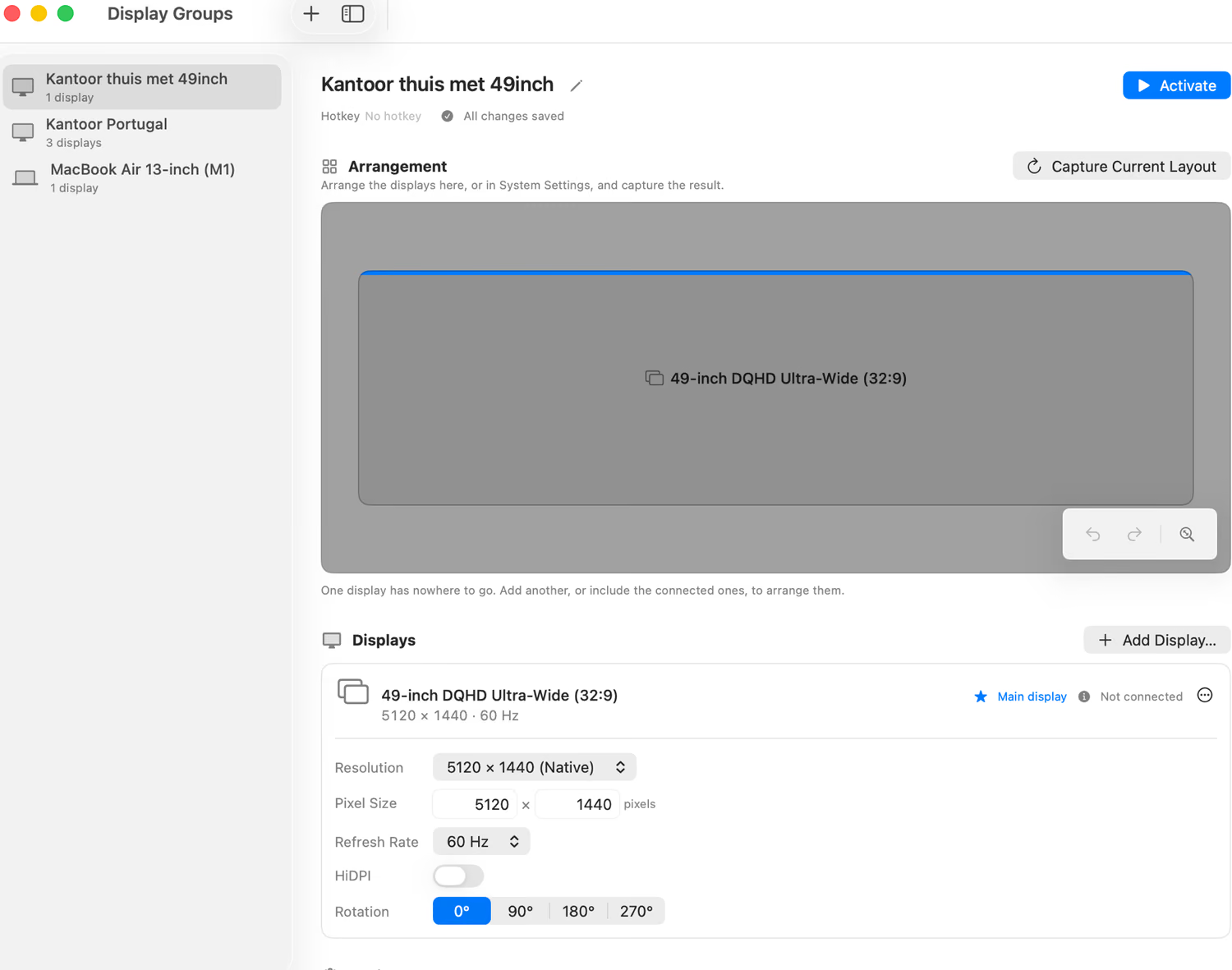
The whole app is one window
A list of setups on the left. On the right, what that setup is made of: which displays exist, how big they are, at what refresh rate, arranged how, and which one holds the menu bar.
- 1 Add a display from the catalogue of 38 real panels, or describe one that is not in it.
- 2 Arrange them, choose which is main, and name the setup after the desk it belongs to.
- 3 Press Activate, click the menu bar, press a shortcut, or run one line over SSH.
macOS has no idea which desk you are at.
It remembers one arrangement: the one you are in. Move to a different desk, or connect from a different machine, and putting things right is a trip through System Settings.
No monitor means no display
A Mac with nothing attached has nothing to composite into. A screen sharing client connects to a stub at whatever resolution the system settled on, which is never a desktop you can work in.
Dummy plugs are physical and fixed
A plug advertises one set of modes forever, chosen by whoever made it. Changing what the machine offers means walking to it, which is the one thing you cannot do with a Mac in another building. It also costs you a port.
There is no saved arrangement to return to
A 49 inch ultrawide at one desk, a laptop at another, an iPad on the sofa. Each wants a completely different setup, and macOS has no concept of a named one you can switch between.
In practice
What people use it for
Every one of these is a Mac somebody works on without being in front of it.
One Mac, two desks
A 49 inch ultrawide at home, a laptop somewhere else, the same machine behind both. One group per desk, and arriving at either one is a shortcut rather than a trip through System Settings.
A Mac with no monitor at all
In a cupboard, a rack, or a room you are not in. Once you are logged in it presents the display you chose, and it comes back by itself after a restart.
Working from a tablet
The catalogue has the iPad panels in it, so the display can match the tablet exactly and the client renders one to one instead of scaling something the wrong shape.
A machine that needs a real desktop
Interface tests, screenshot runs, anything that quietly fails with no display attached. A display that is the same shape on every run.
What it actually does
Named groups, complete arrangements
A group is not a shortcut to one setting. It is the whole state: which displays exist, at what resolution and refresh rate, rotated how, positioned where, and which one owns the menu bar. Activating one is a single transaction, and if any step fails the previous state comes back.
Groups
- Home ⌃⌥1
- Office ⌃⌥2
- MacBook Air 13-inch ⌃⌥3
- Capture current setup...
- Deactivate all
- Settings...
A catalogue of real panels
38 devices: Apple's external displays, MacBook and iMac panels, iPads, and the ultrawide formats nobody sells under one name. Pick the thing your display is meant to be and the numbers arrive correct.
Templates and the catalogueThe library follows you between Macs
Groups sync over your own iCloud, and dated local backups mean a group deleted on the wrong machine three days ago is still recoverable. Which group is active stays per machine, because a rack Mac and a laptop want different ones.
Sync and backupsIt defends the setup it applied
Mark a display protected and its resolution is put back when a client renegotiates or a monitor wakes up at its default. It restores the whole arrangement, not the one mode, and it concedes rather than fighting a program that keeps asking.
ProtectionIt never leaves you with nothing
A failed switch rolls back. A failed rollback releases every virtual display and puts a physical one back as main. There is a kill switch that stops the whole feature, and displays left behind by a crash are cleaned up at the next launch.
Pixels, HiDPI and rotation
Define the panel, not the "looks like" number. The HiDPI toggle is what produces the Retina modes on top of it, and rotation is part of the spec, so a portrait side panel comes back portrait.
Virtual displaysShortcuts, links and a CLI
A global shortcut per group, which arrives through a screen sharing session. A URL
scheme for anything that can open a link. And mdctl, ten commands over a socket.
Support bundles that stay small
One button writes a zip with the configuration, the app's own log entries and the display topology. It can read from nowhere else, and there is a test that proves it.
SupportWorks with the client you already use
Any client that can attach to a Mac's display works, because the display is the only thing MoreDisplays makes. What differs is what each one can carry, and which of them need one setting changed so they stop asking for a resolution of their own.
-
Screen Sharing Built into macOS
Always there, always works
Handles any display size and scales to the client window. Negotiates a conservative frame rate, so expect 30 to 60 whatever the display is set to. The client to reach for when something else is broken.
Nothing to change.
-
Jump Desktop Fluid mode
The fast one on a local network
The client most likely to make a high refresh rate worth setting. Fluid mode genuinely reaches high rates over a local network, which is where a 120 Hz display stops being theoretical.
Turn off automatic resolution, or it fights protection.
-
VNC Any standard viewer
Works from anything
Point any VNC viewer at the built in server. Low frame rate and poor colour, but it needs nothing installed on the machine you are sitting at, which is exactly what you want when something else has gone wrong.
Nothing to change.
-
Screens Edovia
Leaves the display alone
Respects whatever the display already is and never requests a change, which makes the whole setup easy to reason about. Frame rate is similar to Screen Sharing, since it rides the same transport on macOS.
Nothing to change.
Apple Remote Desktop, Parsec and the rest, with what each one does to the display you made.
What this is not
Worth knowing before you spend an evening on it rather than after.
- Not running before you log in
- It is an ordinary app in your user session, so nothing it does affects the login window. A privileged service that will close that gap ships with it, switched off, and is not finished. Until it is, keep a dummy plug for that window.
- Not choosing a group for you
- There is no rule engine: nothing notices a client connecting and picks a group. You switch, or something you wrote switches. A display can be protected so its resolution is put back, but that defends a setup rather than choosing one.
- Not a colour tool
- A display can be HDR or reference mode, and that is where it stops. No colour profile assignment, no calibration, no measurement. There is one brightness setting, and it is about which display the keys reach.
- Not on the App Store
- Creating a display needs interfaces the sandbox forbids, so it is a signed and notarised disk image instead. The download page has the checksum and the command that checks the signature.
Coming from somewhere else
A free BetterDisplay alternative, for one job
If you found this looking for something other than BetterDisplay, here is the honest shape of it: MoreDisplays is far narrower, costs 10 euro on trust, and is built around saved arrangements rather than around a wide surface of display tools. There is a page that says what it does, and the same page says where it stops.
How it compares- Yes: named arrangements, virtual displays, a catalogue of real panels, protection, shortcuts, a URL scheme and a CLI.
- No: streaming a display into a window, colour management, rules that choose for you, anything before you log in.
- Price: 10 euro, asked for once a month after the first thirty days. Nothing is switched off if you never pay, and a key only stops the asking.
Get it
A signed, notarised disk image. Drag the app to Applications and launch it; it lives in the menu bar and has no Dock icon. No installer, no administrator password, and nothing outside your user folder.
3.6 MB. macOS 14.0 or later, Apple silicon. The download page has the checksum.
How it gets proven
Automated tests run headless against fakes, which proves the logic and proves nothing about an interface Apple does not document. So there is a separate test that uses it for real, on a real Mac, and it runs again after every macOS update.
make smoke
creating 5120x1440 virtual display
display 0x4d440001 active, unmirrored, 5120x1440
released
smoke: ok