Getting started
After this page you will have one working display group and three ways to switch to it.
Last updated 22 August 2026
Install
Download the disk image, drag the app to Applications, and launch it. There is no installer and no administrator password, because the app runs as you and nothing here needs elevating.
It appears in the menu bar and has no Dock icon. The groups window is in that menu.
The download page has the checksum and the command that checks the signature. Both are worth the few seconds, for an app that reconfigures your displays.
Make a display
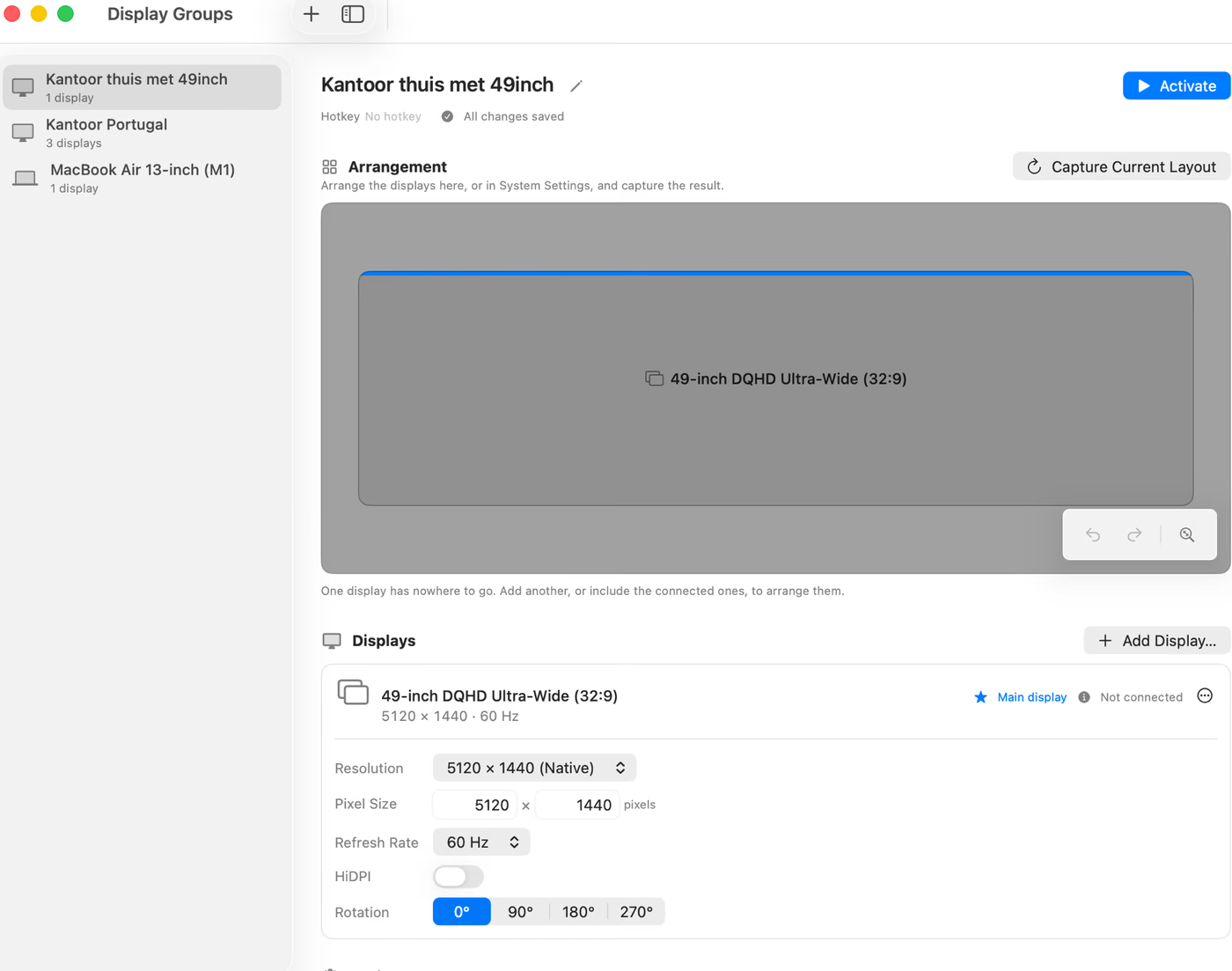
A display group needs at least one display to describe. The quickest way to get one is to pick a real device from the catalogue rather than typing numbers.
The catalogue holds
38 real panels: Apple external displays, MacBook and iMac panels, iPads, and the common formats nobody makes under one name, such as 21:9 and 32:9 ultrawides. Templates and custom shapes are covered in Templates and the catalogue.
Name the group and save it
A group is the whole setup: which displays exist, at what resolution, arranged how, and which
one is main. Give it a name that says where you are, not what it contains: Office
is a better name than 3440x1440.
Groups also carry a symbol for the menu bar, an optional keyboard shortcut, and a switch for whether they activate when the app launches.
Switch to it
Three ways, all doing the same thing.
mdctl activate Office
Activated "Office".From the menu bar, click the group. From anywhere that can open a link, use the URL scheme.
open 'moredisplays://activate?group=Office'A group with a keyboard shortcut can also be switched to from a screen sharing session, which is the one way in that needs neither a terminal nor a browser on the other end.
Check what is going on
mdctl status
version: 0.1.0
state: active
active group: Office
groups: Home, Office, MacBook Air 13-inch (M1)
icloud: syncing, last synced 09:14Labelled lines, always in that order. mdctl displays shows what the machine is actually showing,
and mdctl edid <reference> says what one display claims to be. mdctl is a client: it hands one request to the running app
over a unix socket and prints the reply. With the app closed there is nobody to answer and
every command exits 3.
Where to go next
- Concepts for what every word in the window means.
- Headless setup if this Mac is about to lose its monitor.
- Templates and the catalogue for getting the numbers right for a specific client.