Virtual displays
After this page you will be able to define a display that makes your remote client render at the right sharpness and the right text size.
Last updated 30 August 2026
A virtual display exists in the macOS display hierarchy with nothing on the other end of it. macOS composites into it, applications lay out for it, and a screen sharing client streams from it. The only thing missing is the panel.
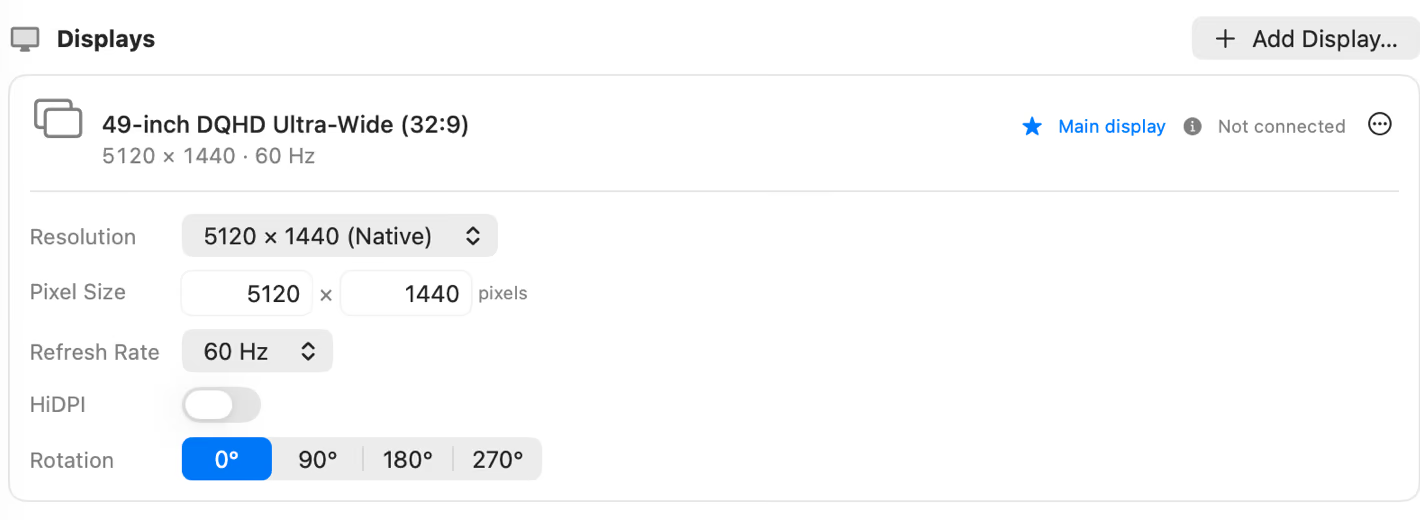
Pixel size and HiDPI
The Pixel Size field is the native framebuffer, in pixels. The HiDPI toggle decides whether the display also advertises the 2x modes derived from it.
| Pixel size | HiDPI | What macOS offers | What it looks like |
|---|---|---|---|
| 2560 x 1440 | off | 2560 x 1440 | A 27 inch 1440p monitor |
| 2560 x 1440 | on | 2560 x 1440, and 1280 x 720 at 2x | The same panel, with a Retina mode |
| 5120 x 2880 | on | 5120 x 2880, and 2560 x 1440 at 2x | A 5K panel used as Retina 1440p |
| 5120 x 1440 | off | 5120 x 1440 | A 49 inch 32:9 ultrawide |
The mistake to avoid is thinking in the numbers System Settings shows. macOS presents a Retina display as “looks like 2560 x 1440” while the panel is 5120 x 2880. MoreDisplays asks for the panel, and HiDPI is what produces the “looks like” modes on top of it.
Picking numbers for a client
Start from the client’s own panel. The catalogue does this for you: pick the iPad or the MacBook from the template picker and the numbers arrive correct.
When you are typing them yourself, these are reasonable starting points.
| Client | Pixel size | HiDPI |
|---|---|---|
| iPad Pro 11-inch | 2388 x 1668 | on |
| iPad Pro 13-inch | 2752 x 2064 | on |
| MacBook Air 13-inch | 2560 x 1664 | on |
| 27 inch 1440p monitor | 2560 x 1440 | off |
| 34 inch ultrawide | 3440 x 1440 | off |
| 49 inch ultrawide | 5120 x 1440 | off |
| 4K monitor, Retina text | 3840 x 2160 | on |
Set one, connect, look at it, adjust. There is no substitute for looking.
Rotation
A display can be rotated by 90, 180 or 270 degrees, and the rotation is part of the spec rather than something applied afterwards. A portrait panel is a landscape panel with a rotation, not a display with its width and height swapped, and macOS reports the two differently to applications.
Rotation is captured with the rest of the group, so a portrait side panel comes back portrait.
The physical size it reports, and why it is a lie
Every display tells macOS how large it physically is, and macOS divides pixels by millimetres to get a density. A virtual display has no physical size, so the app derives one.
It cannot simply use the real panel’s millimetres. The private interface refuses a descriptor whose pixel density is too high for the declared size, so the millimetres are computed from a target density rather than taken from the catalogue. The default target is 150 PPI, which sits comfortably inside what the interface accepts.
There is an override on the spec for the cases where a client renders at an obviously wrong scale and the density is the reason. Reach for it last, after checking the pixel size and the HiDPI toggle, because those explain the problem far more often.
Two behaviours to know about
Displays vanish when the app quits or crashes. They belong to the app, and it releases them when it stops. That is deliberate: a display no running process owns cannot be reconfigured or removed until the next reboot, which is worse than not having it. Orphans from a crash are detected at the next launch through the vendor identifier stamped on everything the app creates, and cleaned up.
There is a kill switch. Turning off Allow virtual displays in Settings stops the app creating any and releases those that exist. It is the first thing to check when nothing appears and no error is shown.
What is available on which macOS
Creating a display uses an interface that is not public API.
| Capability | macOS | State | Why |
|---|---|---|---|
| Create and release displays | 14.0 and later | Available | Below macOS 14 the interface differs enough that the app declines rather than guessing. |
| HiDPI modes | 14.0 and later | Available | Derived from the native pixel size when the toggle is on. |
| Rotation | 14.0 and later | Available | 0, 90, 180 and 270 degrees, stored on the spec. |
| Private interface runtime-validated | 14.0 to 26 | Available | macOS 26 is the newest line the interface has been checked on. |
| Build-validated with SDK 27 | macOS 27 | Partial | All tests and the release build pass with Xcode 27 beta 6 and Swift 6.4. The private interface still needs a physical macOS 27 smoke test. |
| Newer than the last runtime test | 27 and later | Partial | The app validates every required selector before use, warns and proceeds, then degrades to unavailable if the interface changed shape. |
| Displays at the login window | any | Unavailable | The app runs in your user session, so nothing exists before you log in. The privileged service that will cover it ships but does not serve yet. |
Next
- Templates and the catalogue so you do not have to type any of this.
- Refresh rates for high refresh and the exact NTSC-derived rates.