Groups
After this page you will be able to build a set of groups covering every desk you work from, and switch between them safely.
Last updated 22 August 2026
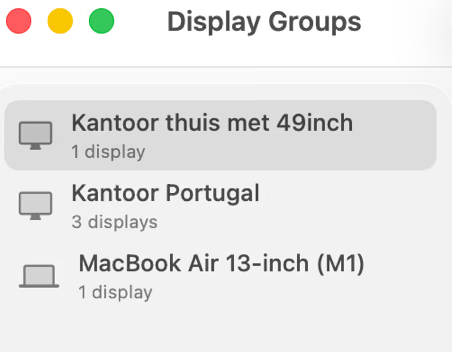
A group is a complete description of a display setup. Activating one replaces whatever the machine is doing with exactly that description. It is not a merge and it is not a patch.
Building one
Add displays from the template picker, arrange them on the canvas, and choose which one is main. The canvas works in points and shows the arrangement as macOS will lay it out, including any gaps and overlaps you leave in it.
A group also carries the things that are about the group rather than its displays: a symbol for the menu bar, an optional keyboard shortcut, whether it activates when the app launches, and whether connected monitors take part in the arrangement.
Capturing
The faster path when the machine is already arranged the way you want: take a picture of it.
mdctl capture
Captured the layout into "Home".Capture writes back where the displays are and which one is main. It does not create or remove displays, and it does not change any display’s resolution: those are choices, made in the window, rather than observations of the current state.
Three things do the same capture: the Capture Current Layout button, the command above, and the Save arrangement changes automatically setting, which does it on a debounce while a group is active. That setting ships off, because silently rewriting a saved group is a surprise the first time it happens.
Activating
mdctl activate Office
Activated "Office".Names are matched exactly, so quote anything with a space. mdctl list prints them in the form
activate expects, which is the fastest way to get the quoting right.
Activation is one transaction. Displays are created, every display the group positions is put into the mode the group recorded for it, the arrangement is applied, and the main display is set. If any step fails the previous state is restored, and the command exits non-zero.
The zero display invariant
The machine is never left with no active display. Not by a failed activation, not by deactivating, not by a rollback that itself fails.
The last of those is the interesting one. If restoring the previous state fails too, the app releases every virtual display and puts the built-in display, or the first physical one, back as main. It is a hard invariant with a test behind it, not an intention.
mdctl deactivate
Deactivated "Office".Deactivating releases the virtual displays and leaves physical ones alone. With nothing active it says so and exits 0, so a script that runs it twice does not fail on the second run.
Attached monitors
Include connected displays decides whether monitors that are physically attached take part in this group’s arrangement. With it off, the group is about its virtual displays only. With it on, attached monitors are placed where the group says, given the resolution the group recorded, and can be the group’s main display.
Leave it off for any group that has to work on a machine where the monitor is sometimes absent, which is most of them. Attached monitors covers the rest, including why a monitor in a group has no delete command.
Arranging
The arrangement is normalised so the main display sits at the origin. Changing which display is main therefore moves every other origin, because every other origin is expressed relative to it.
An arrangement is validated before anything is applied, and a plan that fails validation never reaches the hardware. Displays may not overlap, exactly one must sit at the origin, and the whole layout must be contiguous: a display stranded across a gap is a display the pointer cannot reach, and the error says which ones were stranded.
Deleting
Deleting a group removes its definition. The active group cannot be deleted: the app refuses with a banner telling you to deactivate first, because deleting the description of the state the machine is currently in leaves nothing able to describe how to get out of it.
A deletion is recorded rather than simply performed, which matters if you use more than one Mac. Sync and backups explains why an absence cannot travel and a record can.
A set that covers most cases
| Group | For | Shape |
|---|---|---|
| One per desk | Arriving somewhere you work | The panel that desk actually has, from the catalogue |
| A tablet group | Connecting from an iPad | The iPad’s own panel, HiDPI on |
| A fallback | Everything going wrong | One display, 1920 x 1080, 60 Hz, HiDPI off |
Give the fallback a keyboard shortcut you can remember without looking, and set one group to activate on launch.
Next
- Switching without the window for hotkeys, the URL scheme and the CLI.
- Sync and backups for keeping this library on more than one Mac.